
FROM YOUR CONSOLE TO THE CLOUD
Get started on your Dreamcast
The goal of this service is to provide a safe place to backup your VMU saves. It also allows you to download your saves to another console, and share your files with friends!
Supports broadband adapters and Dreamcast modems with a working DreamPi setup.
CDI disc image · Latest release from GitHub
1. Create your account
Register here with a username, password and email address. You’ll use the same login in the Dreamcast app.
2. Boot the app on your Dreamcast
Use the CDI image downloaded above to start the app on your console.
GDEMU: add the CDI to your SD card using your usual game setup, then launch it from the menu. For other optical drive replacements, check which image formats they support.
CD-R: burn the CDI as a disc image, rather than copying the file onto a data disc. It is self-booting on MIL-CD-compatible Dreamcasts; no separate boot disc is needed.
3. Connect and log in
Broadband adapter: connect it before starting. Your router should provide an address automatically through DHCP.
Modem / DreamPi: configure and test DreamPi with another app first. DCVMU reads your saved PlanetWeb or DreamPassport dial-up settings and connects automatically when no broadband adapter is detected. If no saved profile is available, it uses the standard DreamPi defaults. Allow time for dialing; restart the app if the connection fails.
Set the Dreamcast’s date and time correctly so secure connections can be verified.
Log in with your DCVMU account.
4. Upload or download a save
Upload: select Upload from the main menu, choose a save and switch VMUs with left/right if needed. Add a name, game and optional notes.
Saves are public by default; or choose private to limit to your account. If a duplicate exists, you can replace it or keep another copy.
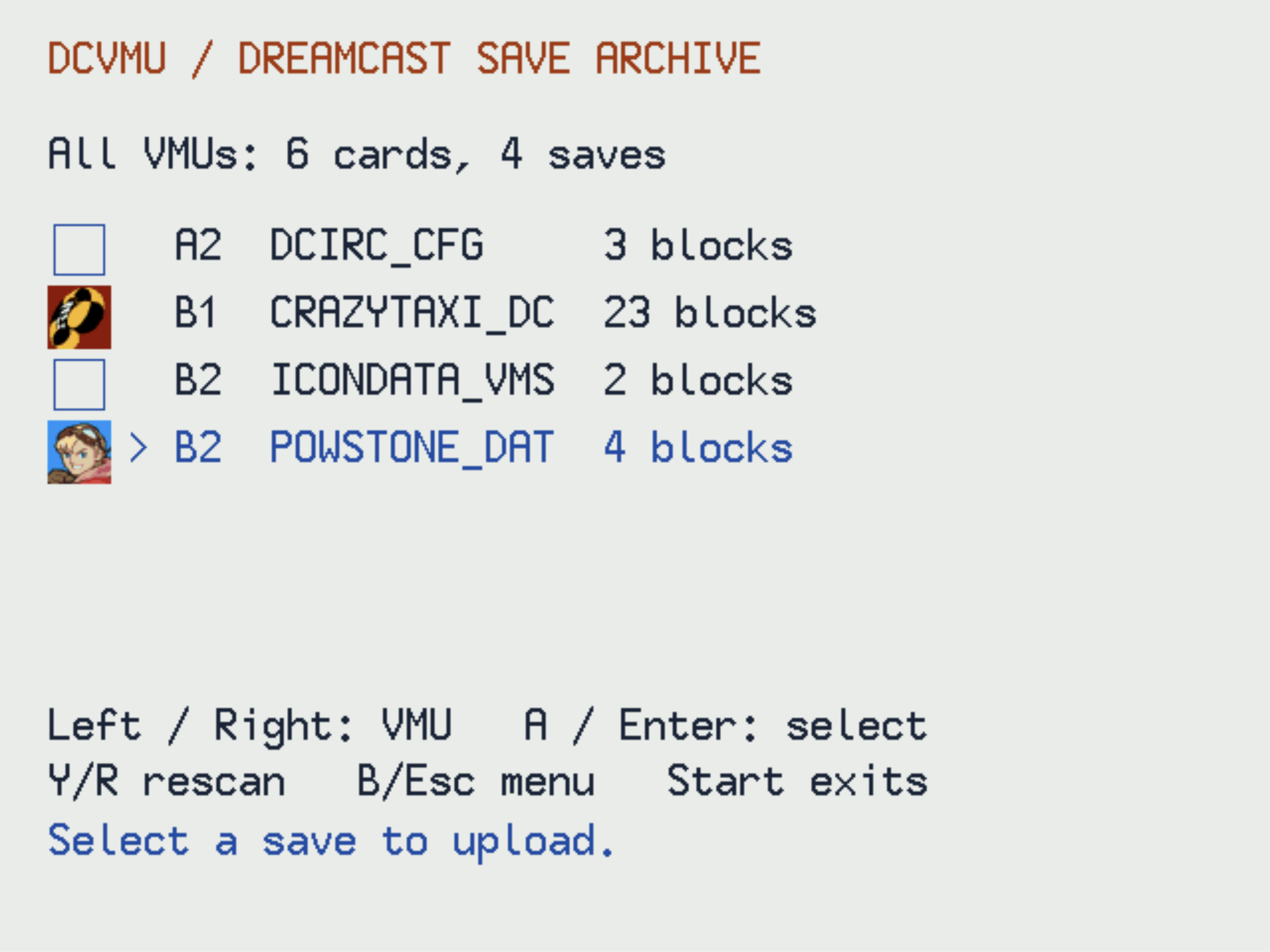
Download: select Download, browse your own saves or public saves, then choose a destination VMU with enough free blocks. Confirm the install or replacement.
Keep the VMU connected and the console powered on until it finishes.
Follow the on-screen button prompts to select items and go back. A selects and B goes back.
OPTIONAL EXTRA
Whole-VMU archives
Separately from uploading individual saves, the app can also snapshot an entire VMU in one go, handy before lending a card or trying something risky.
Archive a VMU: pick a card and give the snapshot an optional friendly name. Every file on the card is saved together, date-stamped automatically, so you don’t have to back up each save one at a time. Your DCVMU login save is left out.
Restore a VMU: choose an archive and a destination VMU, then confirm. The whole card is replaced with the archived contents and verified afterwards. Archives are private and also appear under VMU archives on the website, where you can upload or download card images for emulators.